Back to Maintenance Manager for Education Main Menu
Updating a Preventive Maintenance Schedule
The Edit Preventive Maintenance feature allows Administrators and Technicians to update preventive maintenance schedule details, assignments, tasks, attachments, and parts.
To Edit a Preventive Maintenance Schedule:
-
Navigate to the
 (Preventive Maintenance) icon.
 -
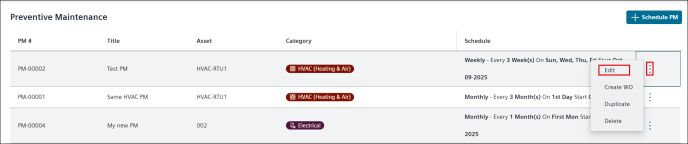
Click
 icon of a Preventive Maintenance.
 -
Click the Edit button.
-
Under the Details tab, click
 button.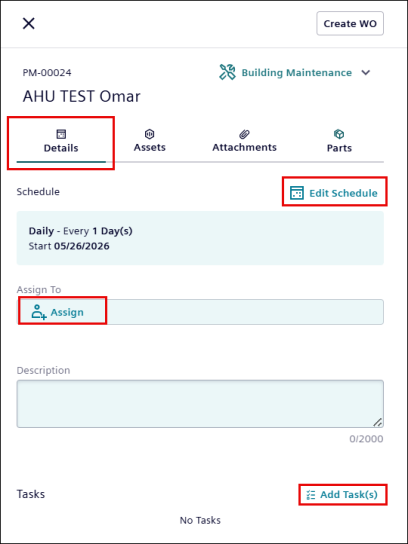
-
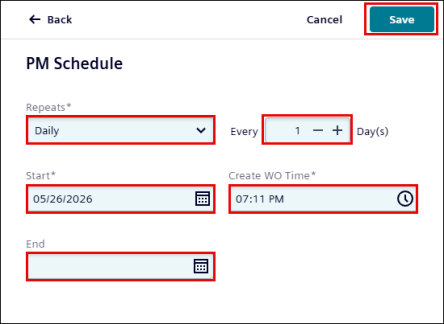
Update the following details, as required:
-
Repeats
-
Every
-
Start
-
Create WO Time
-
End
NOTE Start date can only be set to the current date and future date.
-
-
Click Save.
-
Click Assign button to assignee a technician.
NOTE Maximum of 5 assignees can be assigned.
-
Enter the description.
-
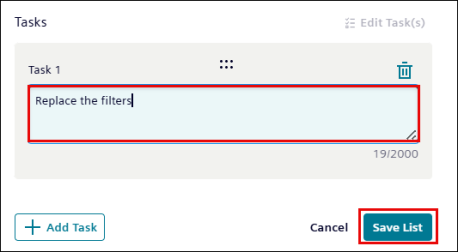
Click
 to enter the task description and click Save List.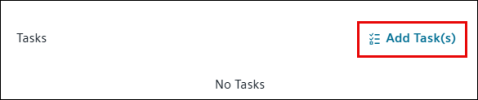
-
Click the
 to modify the same task description.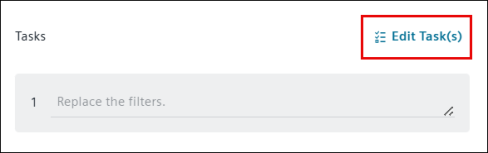
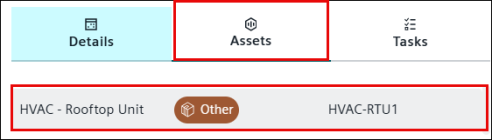
NOTE You cannot update associated assets. However, you can select an asset to view its details.
-
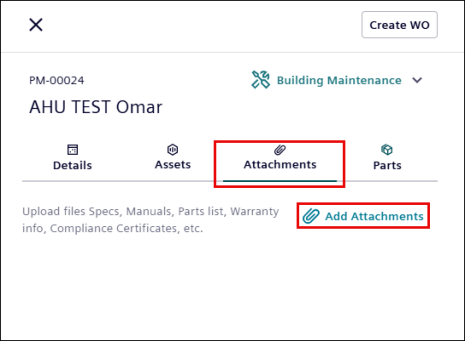
Go to the Attachments tab, click Add Attachment to upload files.
-
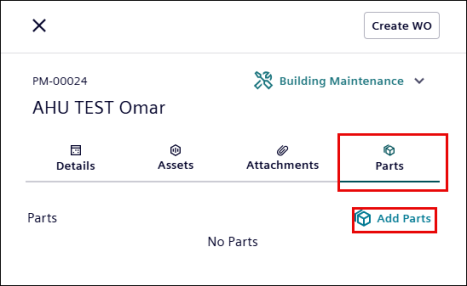
Go to the Parts tab, click Add Parts to add parts.